
How to Insert a PDF into a Google Doc
Google Docs has no native PDF embed. You can't drag a PDF onto a page and have it render inline the way it would in Notion or a dedicated document viewer. What you can do is pick the right workaround based on what you actually need the PDF to do inside your document.
I ran into this last month putting together a client brief. I had a 17-page technical spec as a PDF and needed to reference it inside a shared Doc. Three colleagues sent me three different instructions. All of them were partly wrong. So I tested every method properly.
There are 4 real options: insert as a Drive link or smart chip, insert as an image, convert to editable text via Google Drive OCR, or grab a quick screenshot of a single page. Each one does something different. Knowing which to use saves you about 23 minutes of frustration.
Can You Actually Embed a PDF in Google Docs?
Not in the true embed sense. Google Docs can display a Drive file smart chip, a regular link, an image version of a PDF page, or converted text from a PDF. It cannot display a scrollable, interactive PDF inside the document body. There's no button for it and no workaround that gets you there.
If you need a live, scrollable PDF viewable inside your document, Google Sites (not Google Docs) supports iframe embeds. For everything else, the 4 methods below cover what you actually need.
How to Insert a PDF into a Google Doc as a Drive Link or Smart Chip
This is the right method for most situations. The PDF stays in Drive; your Doc references it as a clickable link or a file chip. Readers open the PDF in one click without leaving the workflow.
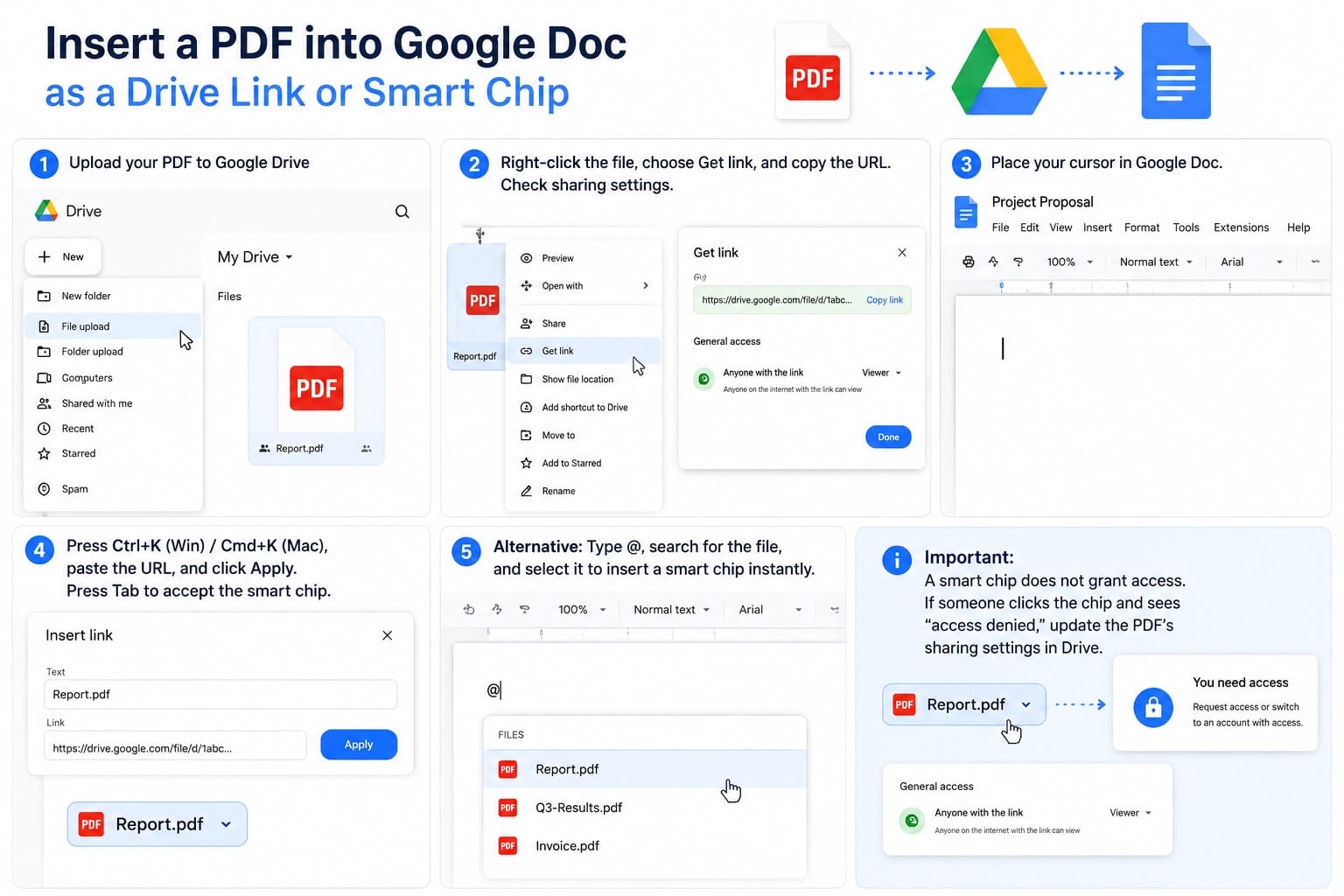
Most tutorials stop at "paste a URL." The smarter approach uses a smart chip, which is cleaner and gives readers a visual file preview on hover.
- Upload your PDF to Google Drive: click New > File upload and select the file.
- Right-click the uploaded file in Drive, select Get link, and copy the URL. Check the sharing settings before you continue — if your Doc has external readers, the PDF needs to be set to Anyone with the link separately. The Doc's sharing settings do not apply to the PDF automatically.
- In your Google Doc, place the cursor where you want the reference.
- Press Ctrl+K (Windows) or Cmd+K (Mac), paste the URL, and click Apply. Press Tab to accept the smart chip display.
Alternative via @ mention: type @ in your document, start typing the PDF filename, and select it from the file suggestions. This inserts a file smart chip directly without pasting a URL. It's faster if the file is already in Drive and you know the name.
One thing almost no tutorial mentions: a smart chip does not grant access. If someone clicks the chip and sees "access denied," the PDF's sharing settings need to be updated in Drive — the chip just provides the link, not the permission.
How to Insert a PDF into a Google Doc as an Image
Use this when you need readers to see the actual page content without leaving the document. Signed contracts, infographics, spec sheets, scanned forms. Anything where the layout carries meaning.
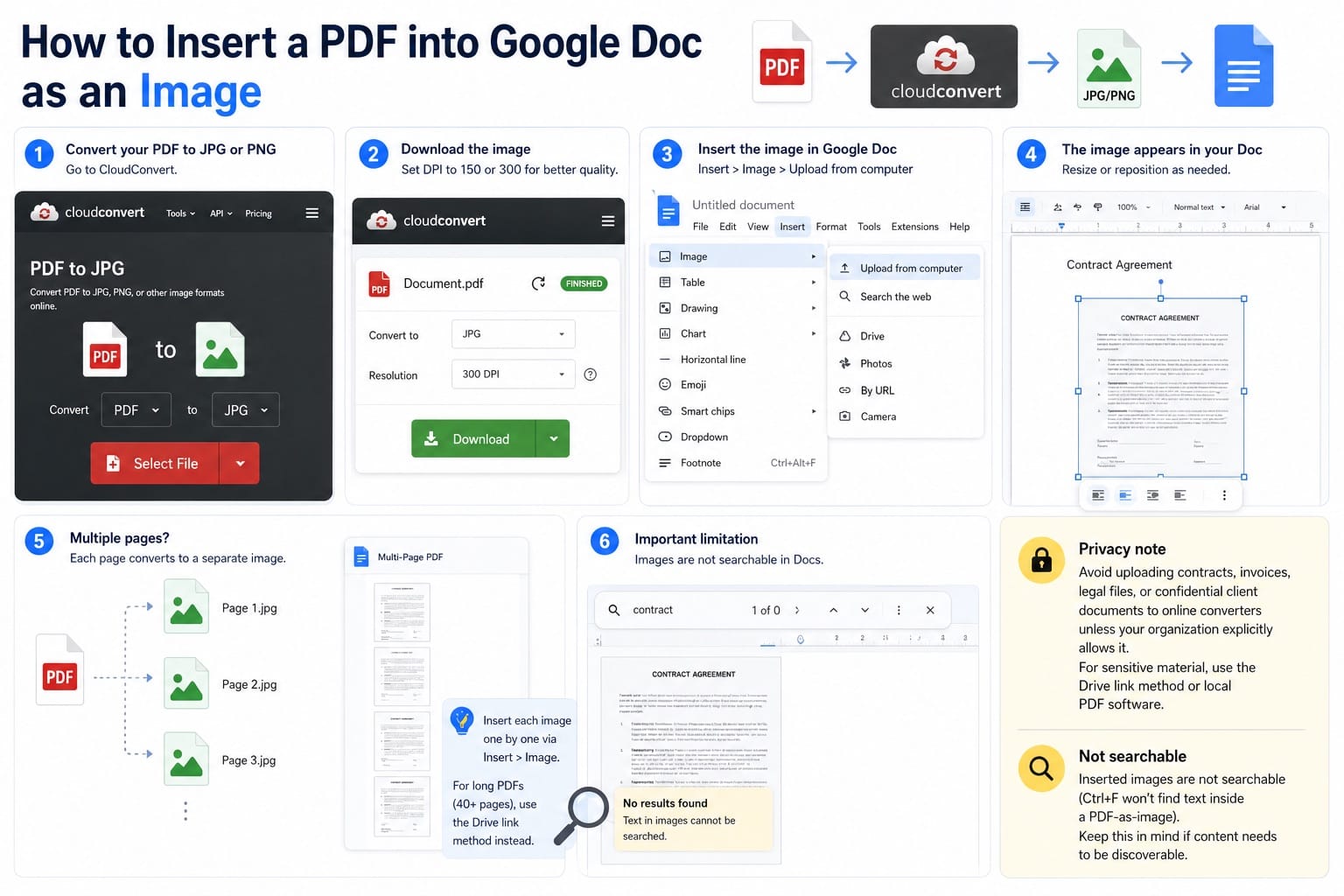
Google Docs can't render PDF pages directly, so you convert to an image first. The conversion takes about 4 minutes for a single page using a free tool.
- Go to CloudConvert and convert your PDF to JPG or PNG. CloudConvert has a free plan — check the pricing page for current daily limits before using it for large batches, as the numbers change.
- Download the converted image. For higher quality, set the pixel density to 150 or 300 DPI before converting — the default tends to export too low-res for anything text-heavy.
- In your Google Doc, go to Insert > Image > Upload from computer and select the file. The image appears inline and can be resized or repositioned.
If the PDF has multiple pages and you need all of them, CloudConvert outputs a separate image file per page. Insert them one by one via Insert > Image. For a 7-page contract that's doable. For a 40-page report, use the link method instead.
One real limitation: inserted images are not searchable within the document. Ctrl+F won't find text inside a PDF-as-image. Keep that in mind if the content needs to be discoverable.
Privacy note: avoid uploading contracts, invoices, legal files, or confidential client documents to online converters unless your organization explicitly allows it. For sensitive material, use the Drive link method or local PDF software.
Fast Option: Insert One PDF Page as a Screenshot
If you only need a single page or a section of a PDF, a screenshot is the quickest path. No conversion tools, no uploads.
- Windows: open the PDF page at full size, press Windows + Shift + S to open Snipping Tool, select the area you want.
- Mac: press Cmd + Shift + 4 and drag to select the area.
In your Google Doc, paste with Ctrl+V (or Cmd+V). The screenshot drops in as an image. You can resize it the same way as any other image in Docs.
This works well for a single chart, a signature block, or one page of a multi-page PDF you don't want to fully convert. It's also the fastest option when someone sends you a PDF by email and you need one section in a document immediately.
How to Convert a PDF to Editable Text in Google Docs
This is usually listed as the simplest option. It's actually the most unpredictable one.
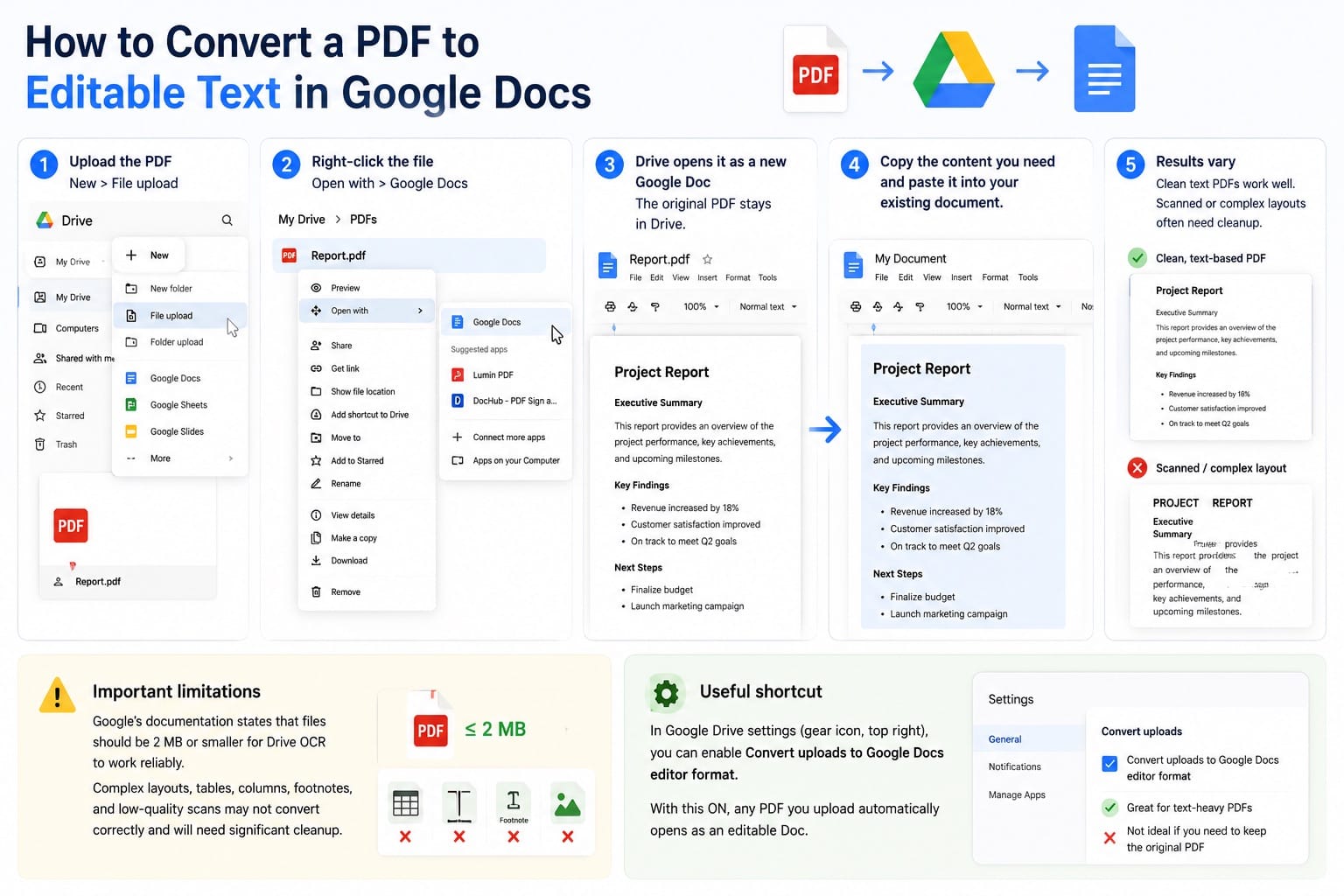
Google Drive has built-in OCR that converts PDFs to editable Google Docs format. The process is straightforward. The output quality varies a lot depending on the source file.
- Upload the PDF to Google Drive via New > File upload.
- Right-click the file in Drive and select Open with > Google Docs.
- Drive opens the PDF as a new, separate Google Doc. The original PDF stays in Drive untouched.
- Copy the content you need and paste it into your existing document.
For clean, text-heavy PDFs with standard layouts, the output is surprisingly usable. A scanned invoice with a two-column layout came out as scrambled fragments in my tests.
Google's official documentation notes that files should be 2 MB or smaller for Drive OCR to work reliably, and warns that complex layouts, tables, columns, footnotes, and low-quality scans may not convert correctly. That's not a minor caveat — it means any PDF with real formatting structure will need significant cleanup after conversion.
One shortcut worth knowing: in Google Drive settings (gear icon, top right), you can enable Convert uploads to Google Docs editor format. With this on, any PDF you upload automatically opens as an editable Doc. Useful if you frequently process text-heavy PDFs. Not useful if you want the original file to stay as a PDF in Drive.
Which Google Docs PDF Insert Method to Use
| What you need | Method | Best for |
|---|---|---|
| Readers access the full PDF | Drive link or smart chip | Reports, specs, reference files |
| Show a full page visually in the doc | Image (convert first) | Contracts, infographics, diagrams |
| Grab one section quickly | Screenshot | Single page or partial content |
| Edit the PDF's text inside Docs | Convert via Drive OCR | Simple text-only PDFs |
The Drive link method covers most real cases. If your team runs on Google Workspace, Drive links are already part of the daily workflow. Image conversion gives you visual fidelity but requires more steps. Screenshot is fastest for one-off needs. OCR conversion is only worth attempting on clean, simple PDFs where you genuinely need to edit the content afterward.
FAQ: Inserting PDFs in Google Docs
Can I embed a PDF directly in Google Docs?
No. Google Docs has no native PDF embed feature. You can link to a PDF in Drive, insert a smart chip, convert PDF pages to images, or use Drive OCR to extract editable text. A scrollable, interactive PDF inside a Doc is not possible.
Can I add a PDF to Google Docs on mobile?
Yes, for the link and smart chip methods. Upload the PDF using the Drive mobile app, copy the sharing link, and paste it into your Doc using the Docs mobile app. Image conversion requires a desktop browser or a separate mobile PDF-to-image app.
Why does my PDF link show as broken in Google Docs?
The PDF's sharing settings in Drive don't match who you've shared the Doc with. Open the PDF in Drive, click Share, and update the access level. The Doc's permissions don't carry over to files it links to.
Does Google Docs OCR work on scanned PDFs?
Sometimes. It works best on high-quality scans with clear, standard fonts and simple single-column layouts. Scanned documents with low contrast, unusual fonts, tables, or multi-column text tend to produce poor output. Google's own documentation lists tables, columns, and footnotes as frequently unreliable.
What happens to my PDF after Google Drive converts it?
The original PDF stays in Drive unchanged. Drive creates a new, separate Google Doc with the converted content. You're not overwriting anything. If the conversion looks wrong, delete the Doc and try again — or use a different method.