
How to Add Footnotes in Google Docs: Desktop, Mobile, Shortcuts, and Formatting
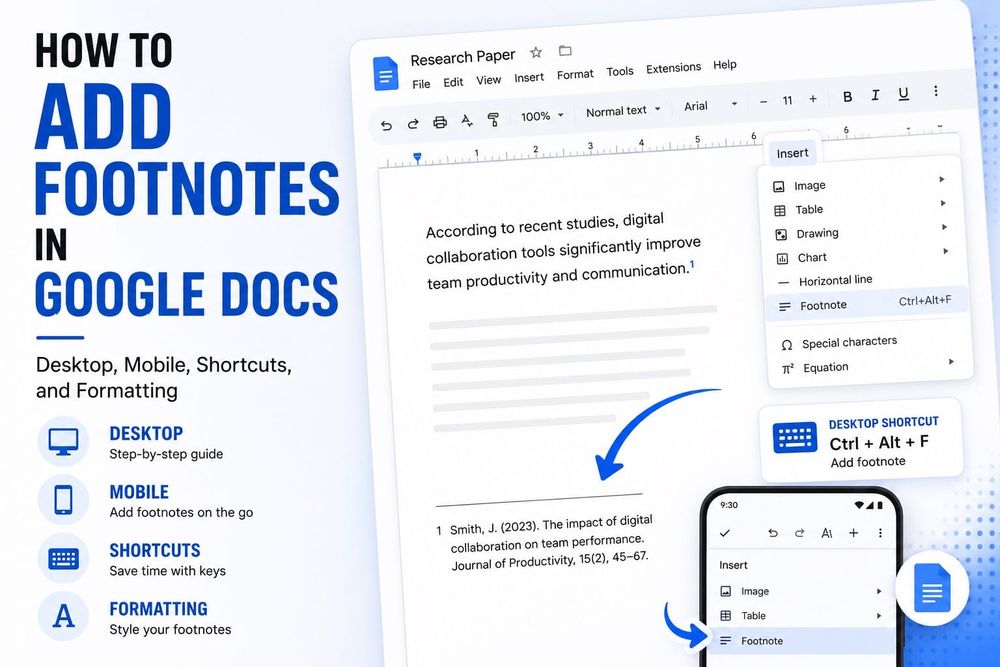
I use footnotes constantly in research docs and client reports. The built-in footnote tool in Google Docs handles numbering automatically, links each marker to its note, and renumbers everything if you add or remove one mid-document. No manual superscripts, no broken references. Here's exactly how it works, including a few things most tutorials skip.
How to Add Footnotes in Google Docs on Desktop
Place your cursor where you want the footnote marker to appear. In most documents, that means placing it after the relevant word, phrase, or sentence. Exact placement can depend on the citation style you're following, so don't treat punctuation position as a universal rule.
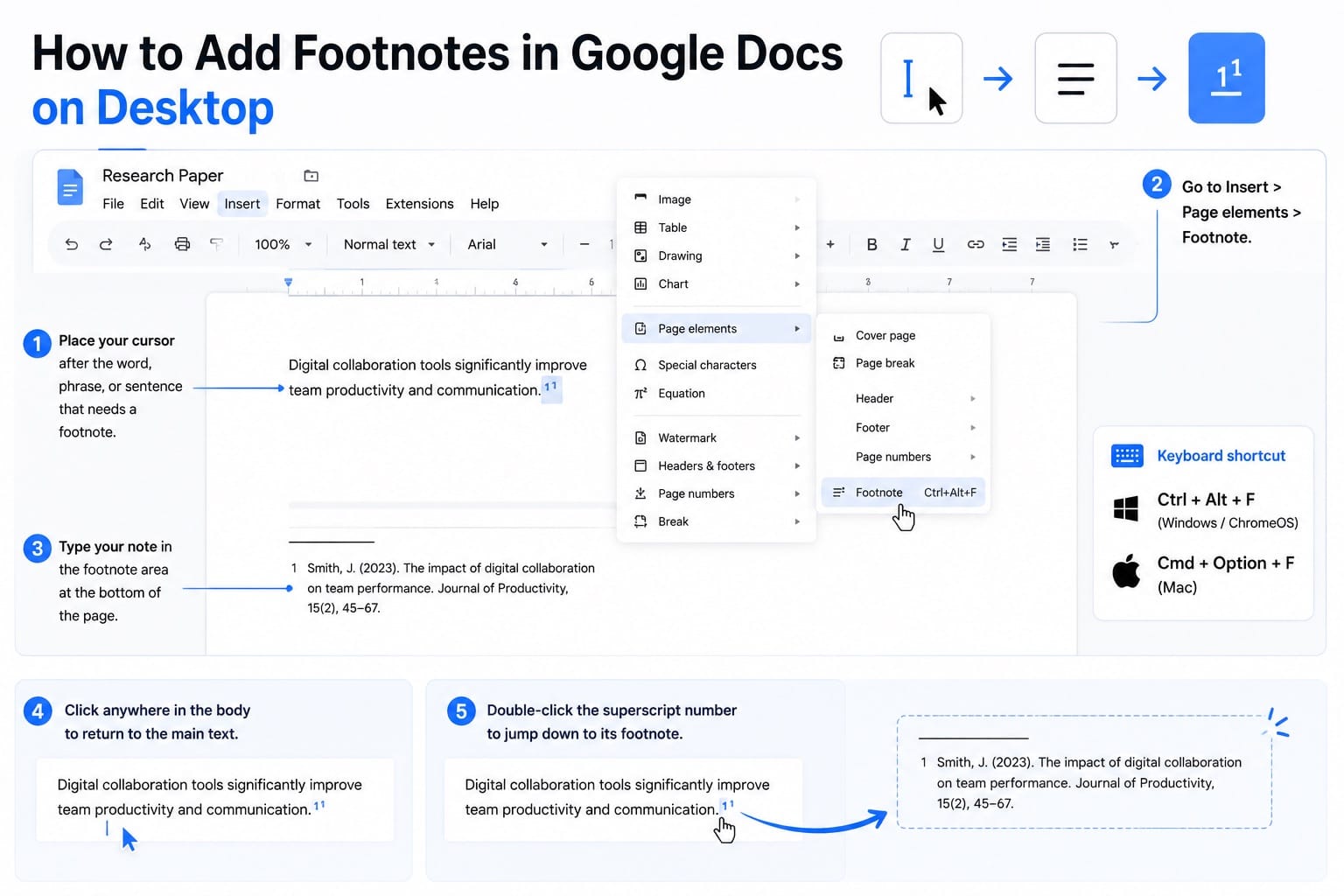
Then go to Insert > Page elements > Footnote in the top menu. Google Docs adds a superscript number at your cursor and moves your focus to the footnote area at the bottom of the page. Type your note there.
The keyboard shortcut is faster once footnotes become part of your regular workflow: Ctrl + Alt + F on Windows and ChromeOS, or Cmd + Option + F on Mac.
To jump back up to the main text after typing your footnote, click anywhere in the body of the document. You can also double-click the superscript number in the body to jump straight down to its footnote. That two-way navigation is useful once a document has 23 or more footnotes scattered across it.
How to Add Footnotes in Google Docs on Mobile
On Android or iOS, tap where you want the footnote marker, then tap the + icon in the toolbar at the top of the screen. Scroll through the insert options until you find Footnote and tap it.
The footnote area appears at the bottom. Type your note, then tap back in the main text to continue writing.
One thing worth knowing: if you're in pageless format, footnotes on mobile can be hard to see. Switch to Print Layout in the document settings if they're not appearing where you expect them.
Google Docs Footnote Formatting: Font, Size, and Style
By default, footnotes use the same base font as your document but at a smaller size (usually 10pt). You can change the font, size, or color for any individual footnote by clicking into the footnote text and using the formatting toolbar exactly as you would for body text.
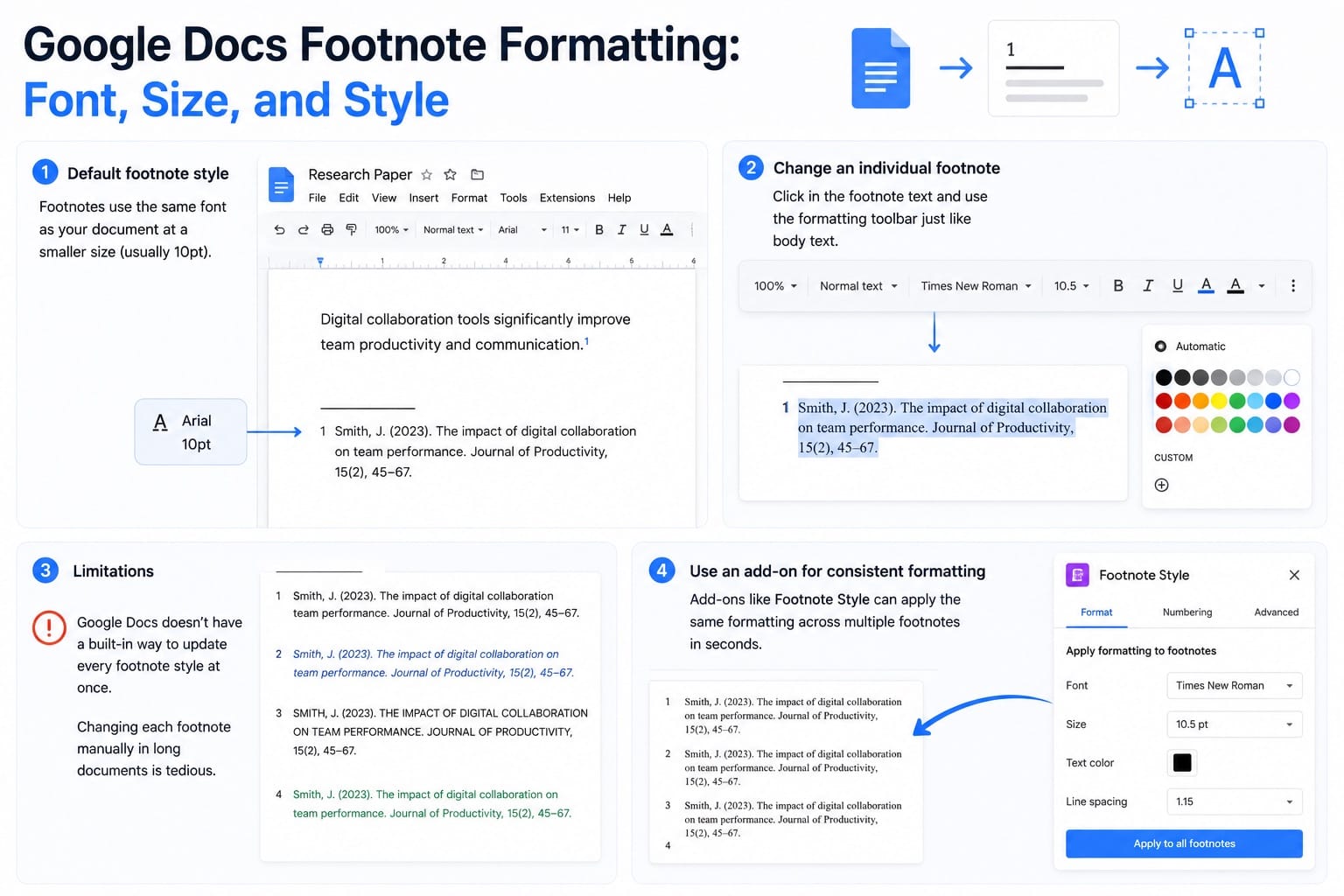
The problem is that Google Docs does not have a strong built-in system for updating every footnote style at once. If you have a long document with dozens of notes, changing each footnote manually gets annoying fast.
For longer documents, add-ons like Footnote Style can help apply consistent formatting across multiple footnotes without editing each one by hand. This is useful when you need all footnotes to match the same font, size, or spacing rules across a report, academic paper, or client document.
How to Delete a Google Docs Footnote
Most tutorials get this backwards. You do not delete a footnote by clicking into the footnote text area and deleting the content there. That just leaves you with an empty footnote marker still sitting in your document.
To fully remove a footnote, you need to delete the superscript number in the main body text. Place your cursor immediately after the number and press Backspace once (or position before it and press Delete). The footnote text at the bottom disappears along with it, and every remaining footnote renumbers automatically.
Google Docs Footnotes in Pageless Format
If your document uses pageless format, footnotes still work, but they behave differently. Instead of sitting at the bottom of whichever page the reference appears on, all footnotes collect together at the very end of the document.
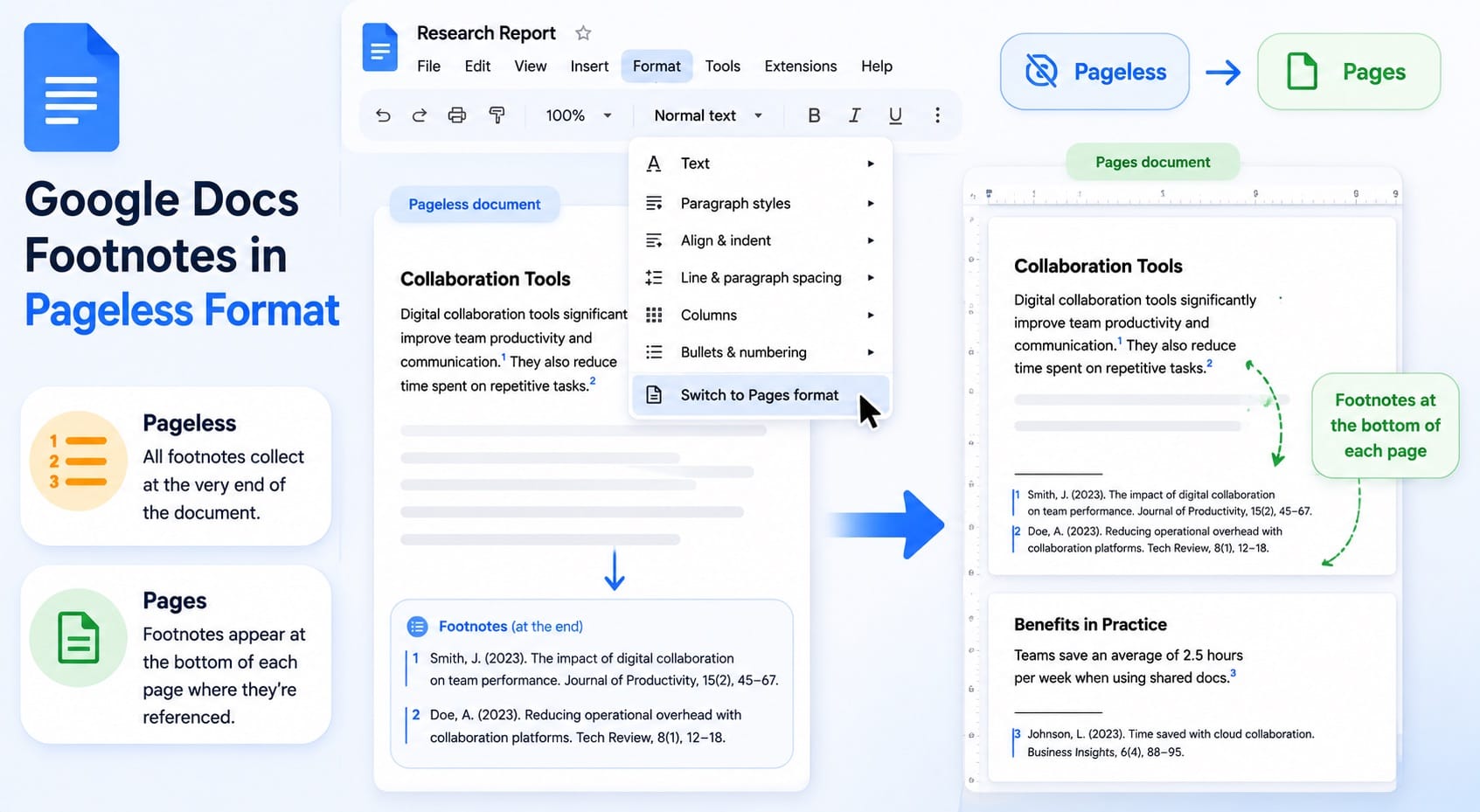
For most collaborative writing use cases, that's fine. For anything that will eventually be printed or exported as a formatted PDF, you probably want to stay in pages format so footnotes appear in the expected position.
Switching from pageless back to pages is straightforward: Format > Switch to Pages format. Your footnotes immediately move from the end of the document to the bottom of their respective pages.
Google Docs Footnotes vs. Endnotes
Google Docs has no built-in endnotes feature. Footnotes appear at the bottom of each page; if you need all notes collected at the end of the document, you have two options.
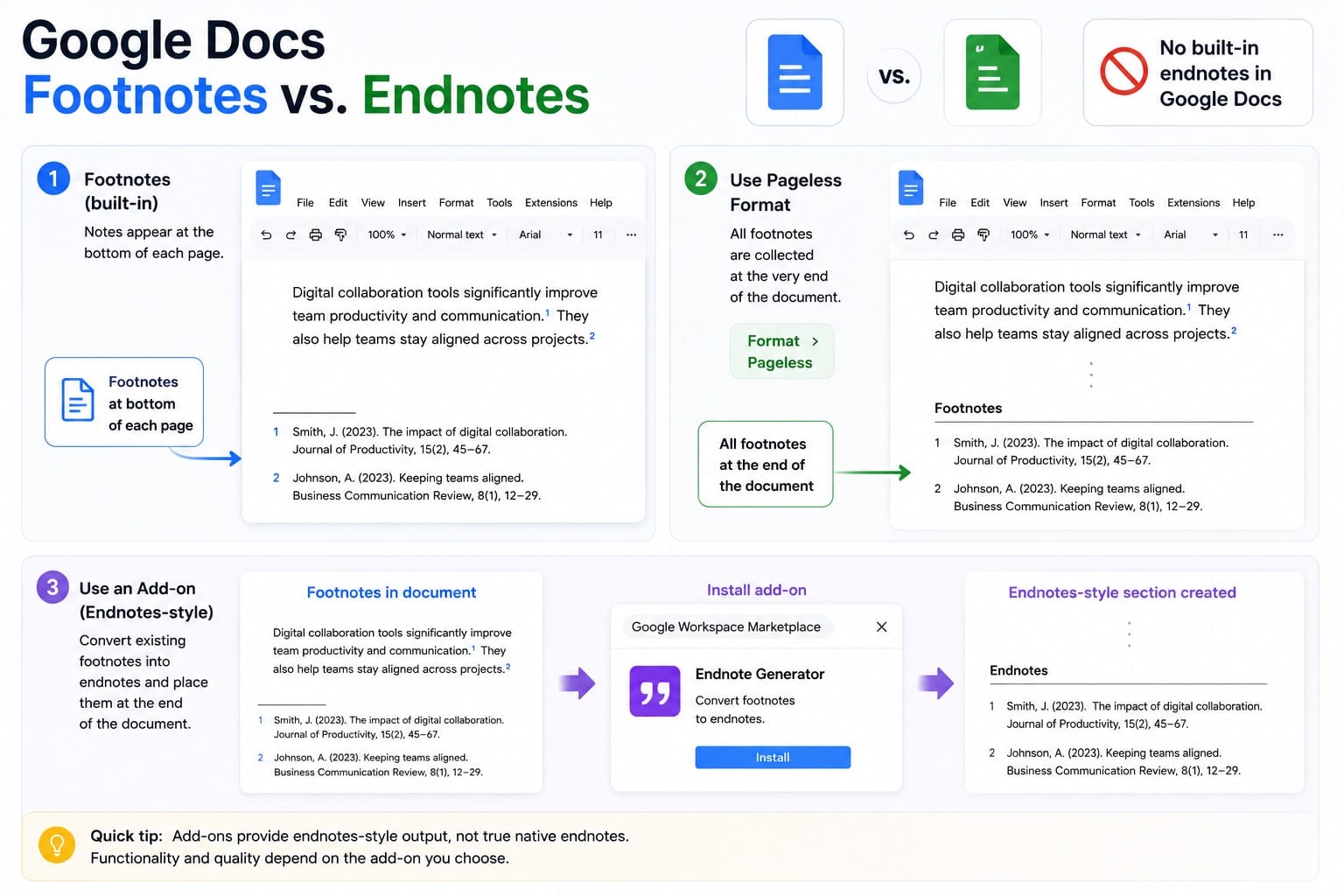
The first is to use pageless format, which as described above pushes all footnotes to the end of the document. Not a true endnote system, but it produces the same visual result.
The second option is to use a Workspace Marketplace add-on that converts existing footnotes into an endnotes-style section. This is better for academic, legal, or heavily referenced documents that require notes collected at the end. Just remember that this is still not a native Google Docs feature — it depends on the add-on you choose.
Google Docs Footnotes vs. the Citations Tool
Footnotes and Google Docs citations are not the same thing. A footnote adds a numbered note at the bottom of the page. It can hold source details, comments, explanations, side notes, or extra context that would interrupt the main text.
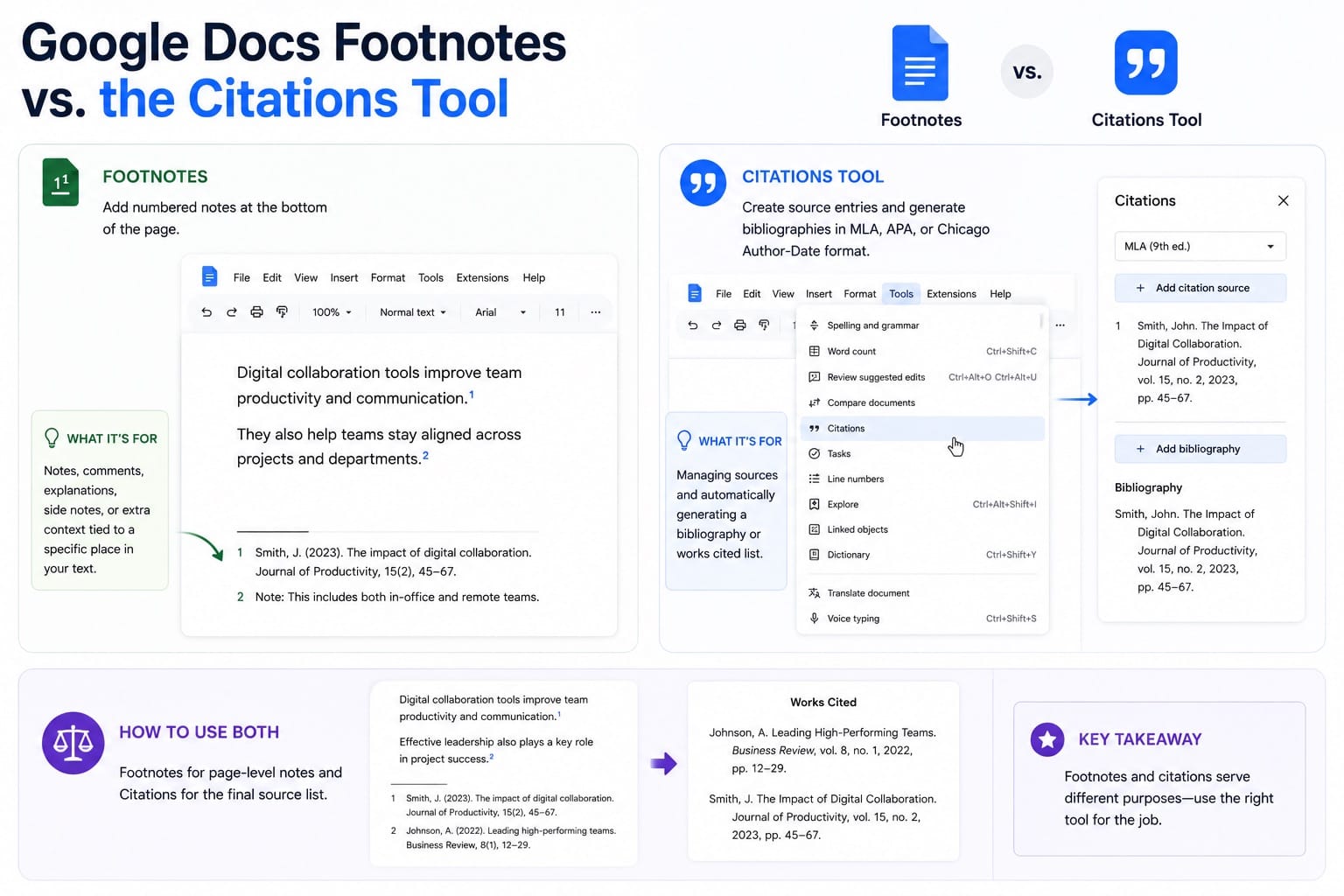
The built-in Citations tool works differently. It helps you create source entries and generate bibliographies in MLA, APA, or Chicago Author-Date format. You can find it under Tools > Citations.
Use footnotes when you need a note attached to a specific sentence or idea. Use the Citations tool when you need to manage sources and produce a bibliography. In formal research documents, you may use both: footnotes for page-level notes and Citations for the final source list.
Google Docs Footnote Shortcuts and Tips Worth Knowing
A few things I've picked up from running a full documentation workflow in Google Workspace:
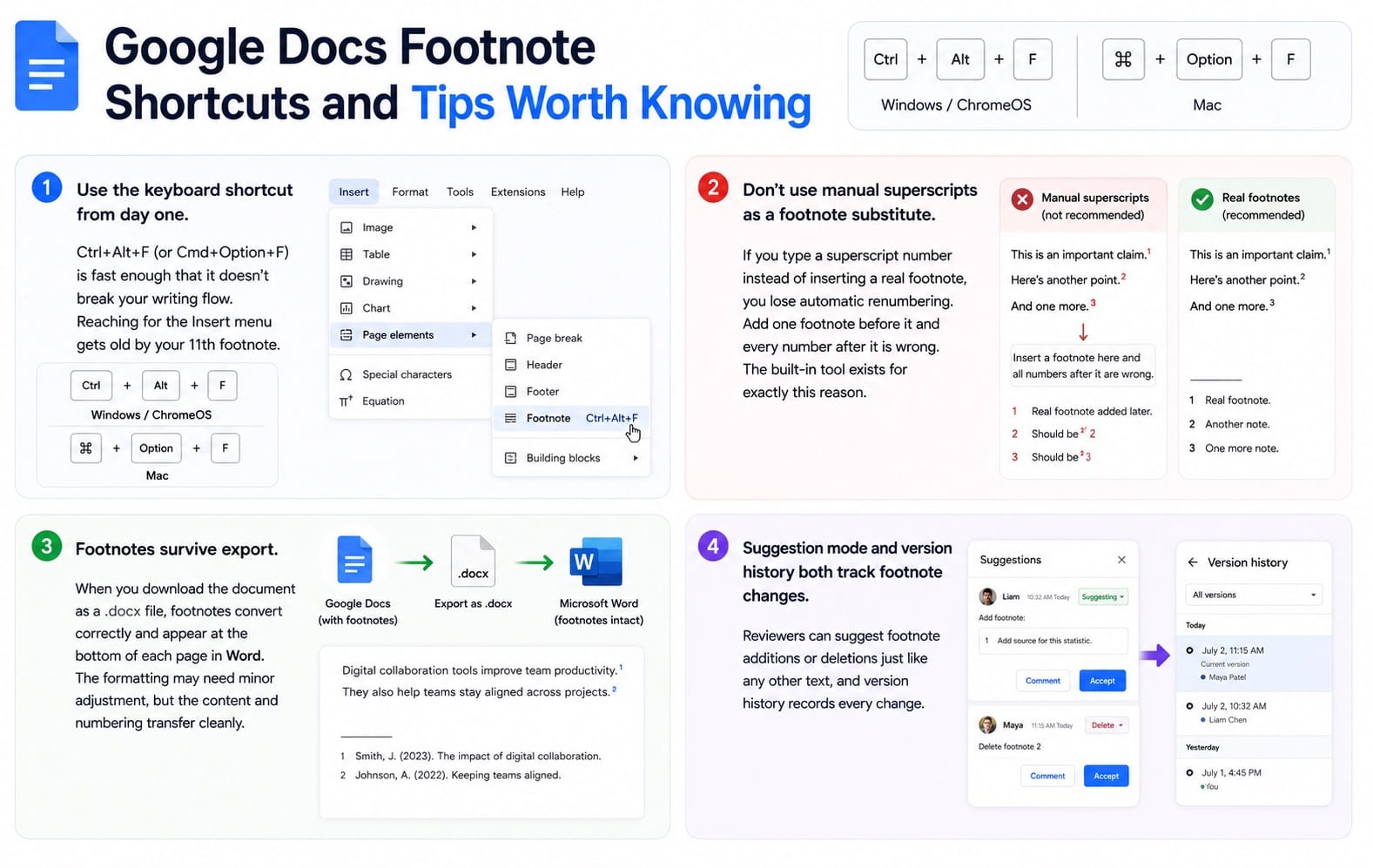
- Use the keyboard shortcut from day one. Ctrl+Alt+F (or Cmd+Option+F) is fast enough that it doesn't break your writing flow. Reaching for the Insert menu gets old by your 11th footnote.
- Don't use manual superscripts as a footnote substitute. If you type a superscript number instead of inserting a real footnote, you lose automatic renumbering. Add one footnote before it and every number after it is wrong. The built-in tool exists for exactly this reason.
- Footnotes survive export. When you download the document as a .docx file, footnotes convert correctly and appear at the bottom of each page in Word. The formatting may need minor adjustment (Word's default footnote style differs from Docs'), but the content and numbering transfer cleanly.
- Suggestion mode and version history both track footnote changes. If you're collaborating on shared documents, reviewers can suggest footnote additions or deletions just like any other text, and version history records every change.
Common Google Docs Footnote Problems
Footnote not showing up: Check whether you're in pageless format. If you are, the footnote is at the end of the document, not on the current page. Scroll to the bottom or switch to pages format.
Footnote numbering out of order: This usually means someone added manual superscript numbers instead of using the Insert > Footnote function. Real footnotes always renumber correctly on their own. Manual ones don't.
Can't click into the footnote area on mobile: Try switching to Print Layout mode in the app's document settings. Pageless format sometimes makes the footnote area invisible or difficult to tap on smaller screens.
Footnote text disappeared but the number is still there: The footnote exists but has no content. Click the superscript number in the body text to jump to it and type your note.
FAQ: Google Docs Footnotes
What is the keyboard shortcut to insert a footnote in Google Docs?
On Windows and ChromeOS, use Ctrl + Alt + F. On Mac, use Cmd + Option + F. Both insert a footnote at your current cursor position.
Can I add footnotes in Google Docs on my phone?
Yes. Tap the + icon in the toolbar, then scroll to and tap Footnote. It works on both the Android and iOS apps.
Does Google Docs support endnotes?
Not natively. You can get the same effect by using pageless format (footnotes collect at the end of the document) or by installing the Endnote Generator add-on from the Google Workspace Marketplace.
How do I change the font or size of footnotes in Google Docs?
Select the footnote text and use the formatting toolbar. To update all footnotes at once, use the Footnote Style add-on from the Workspace Marketplace rather than editing each one individually.
Will footnotes transfer correctly if I export to Word?
Yes. Exporting as .docx preserves footnote content and numbering. The visual formatting may differ slightly from Word's defaults, but the structure comes through correctly.
Can I add footnotes in Google Docs offline?
Yes, if you have offline editing enabled for that document. Go to Drive settings, turn on offline access, and footnotes work the same way as online. Changes sync when you reconnect.
Do Google Docs footnotes renumber automatically?
Yes. If you use the built-in footnote tool, Google Docs automatically renumbers footnotes when you add or delete notes earlier in the document. Manual superscript numbers do not update automatically, which is why you should avoid typing footnote numbers by hand.