
How to Convert a Word Doc to Google Doc (3 Ways)
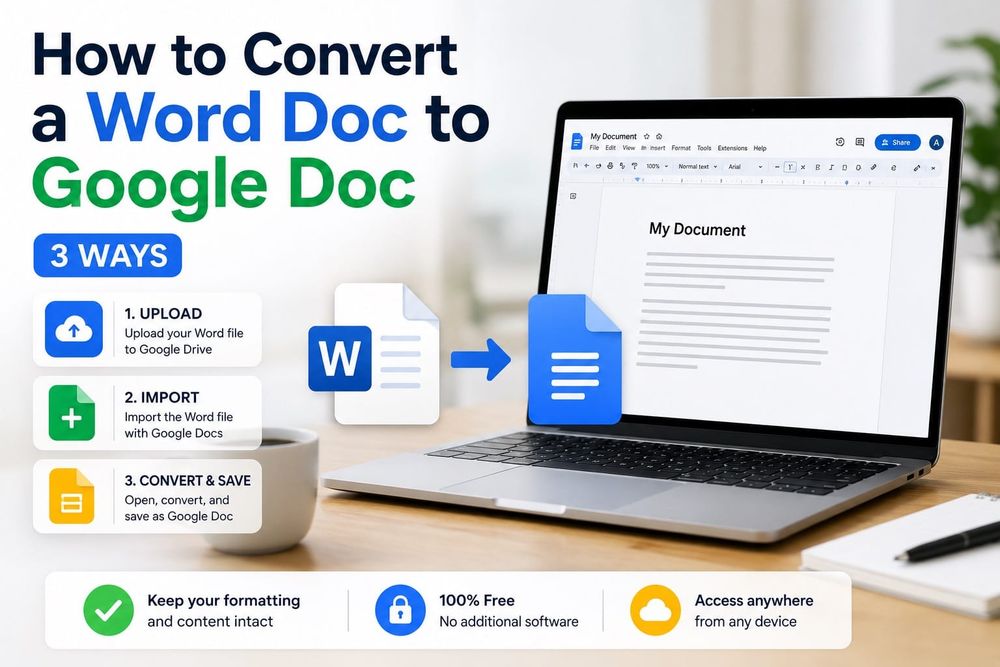
Last week I had 11 Word files land in my inbox from a contractor who had never touched Google Workspace. Converting one at a time, manually, from scratch is the kind of thing that sends you down a rabbit hole of unnecessary steps. There are 3 ways to do this — one for a single file, one if you're moving a whole library of docs, and one if you're on your phone. Here's each one, plus an honest look at what formatting survives the trip.
Quick answer: Upload the .docx to Google Drive, open it, then choose File > Save as Google Docs. That creates a separate native Google Docs copy while keeping the original Word file. If you want every future Word upload converted automatically, enable Convert uploads to Google Docs editor format in Google Drive settings from a computer.
How Google Docs Handles Word Files — What You Need to Know First
When you upload a .docx file to Google Drive, Google does not automatically convert it to a native Google Doc. It stores the file in Word format and lets you open, edit, comment, and collaborate on it through Google Docs' Office editing mode. Changes you make there are saved back to the original Word file, not to a separate Google Docs version.
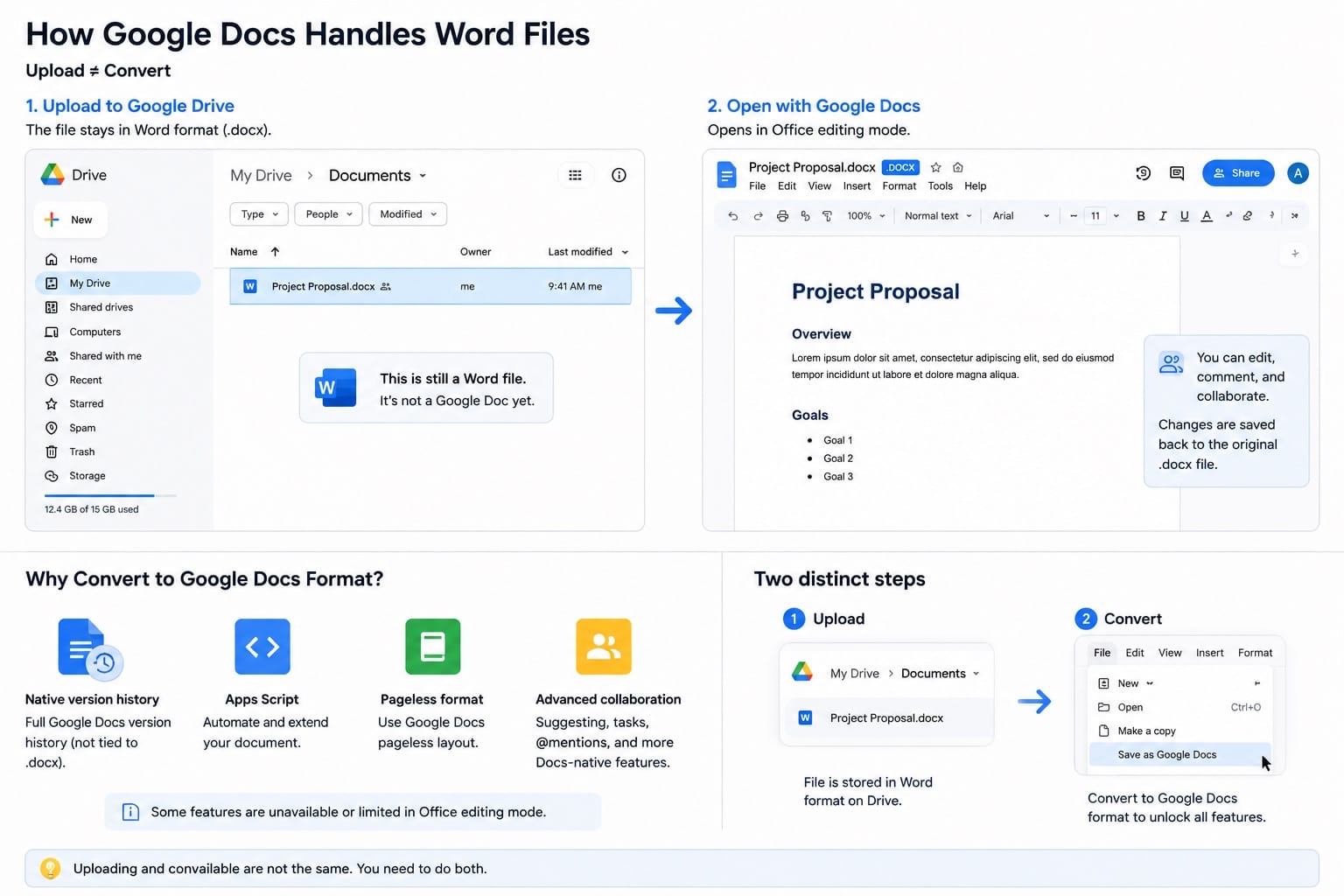
Working in Office editing mode is fine for basic collaboration. But if you want full access to Google Docs features — Google Docs-style version history tied to the native Docs file, Google Apps Script automation, or pageless format — you need to convert the file. These features are either unavailable or limited when editing a .docx through Office editing mode. For a full breakdown of where Google Docs and Word differ, see Google Docs vs Microsoft Word.
There are two distinct steps: uploading the file to Drive, and then converting it to Google Docs format. Most tutorials treat them as one. They're not.
Method 1: Convert a Word Doc to Google Doc Manually (Single File)
This is the most common situation — you have one file and you want it converted now.
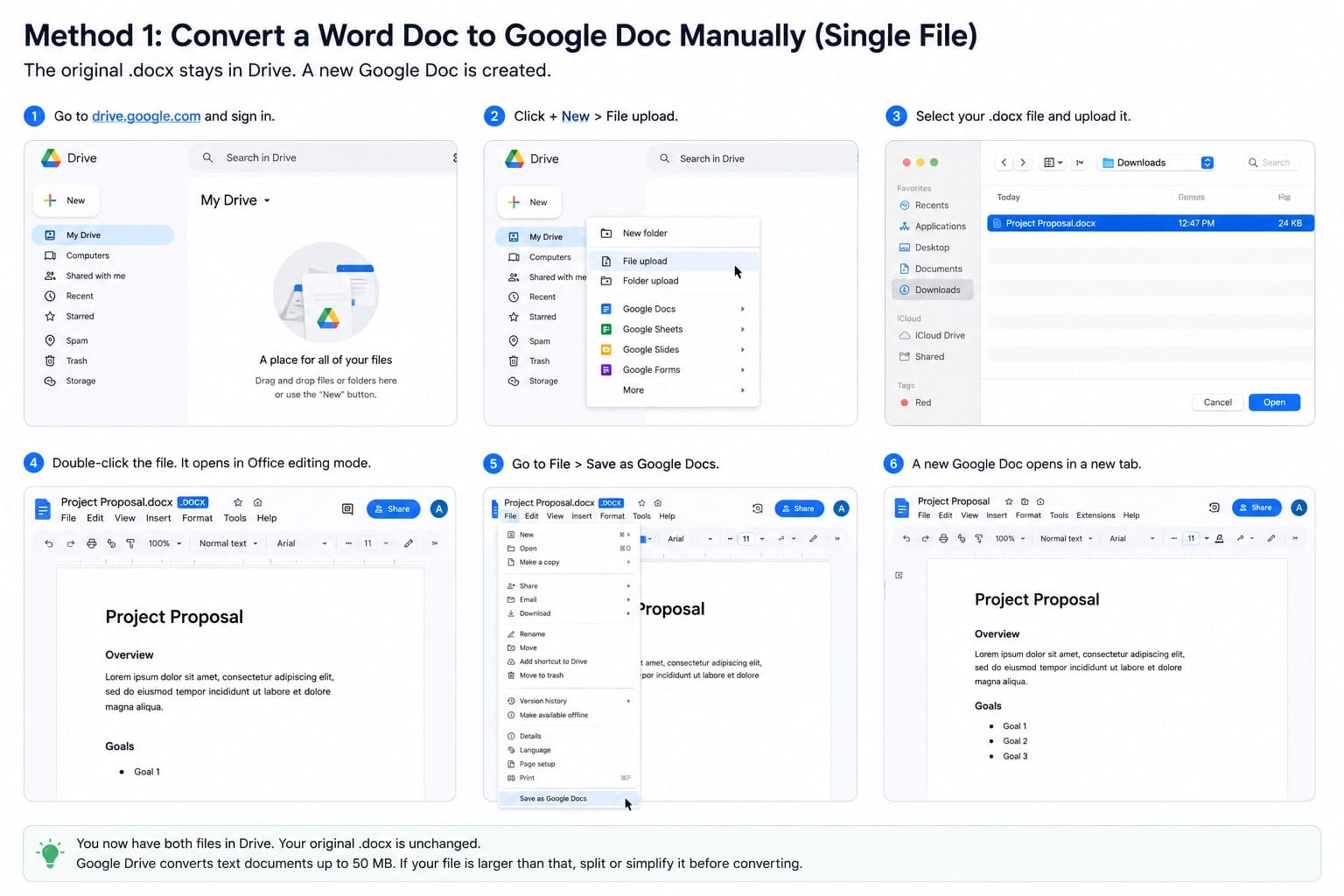
- Go to drive.google.com and sign in. For more detail on getting files into Drive, see how to upload files to Google Drive.
- Click + New in the left sidebar, then File upload.
- Select your
.docxfile and upload it. - Once it appears in Drive, double-click it. It opens in Office editing mode — you'll see the
.docxlabel in the title bar. - Go to File > Save as Google Docs.
Google creates a copy of the file in native Google Docs format and opens it in a new tab. Your original .docx stays in Drive untouched. You now have both — delete the Word version if you no longer need it.
Most people miss step 5 and wonder why the file still shows the .docx label. Opening a Word file in Google Docs is not the same as saving a native Google Docs copy.
Google Drive converts text documents up to 50 MB. If your Word file is larger than that, split it or simplify it before converting.
How to Tell If Your File Is a Real Google Doc
The easiest way to tell is to look at the filename. If you still see .docx next to the title, you are editing the Word file in Office editing mode. If there is no .docx extension and the file opens as a regular Google Docs document, it has been converted. You can also check the file icon in Drive: native Google Docs files use the blue Docs icon, while Word files keep the Word-style file label.
Method 2: Auto-Convert Word Docs to Google Docs on Every Upload
If you're moving a full documentation folder from Word to Google Workspace, doing this one file at a time will take the rest of your afternoon. Google Drive has a setting that converts every Word file automatically on upload. This setting can only be changed from a computer, not from the mobile app.
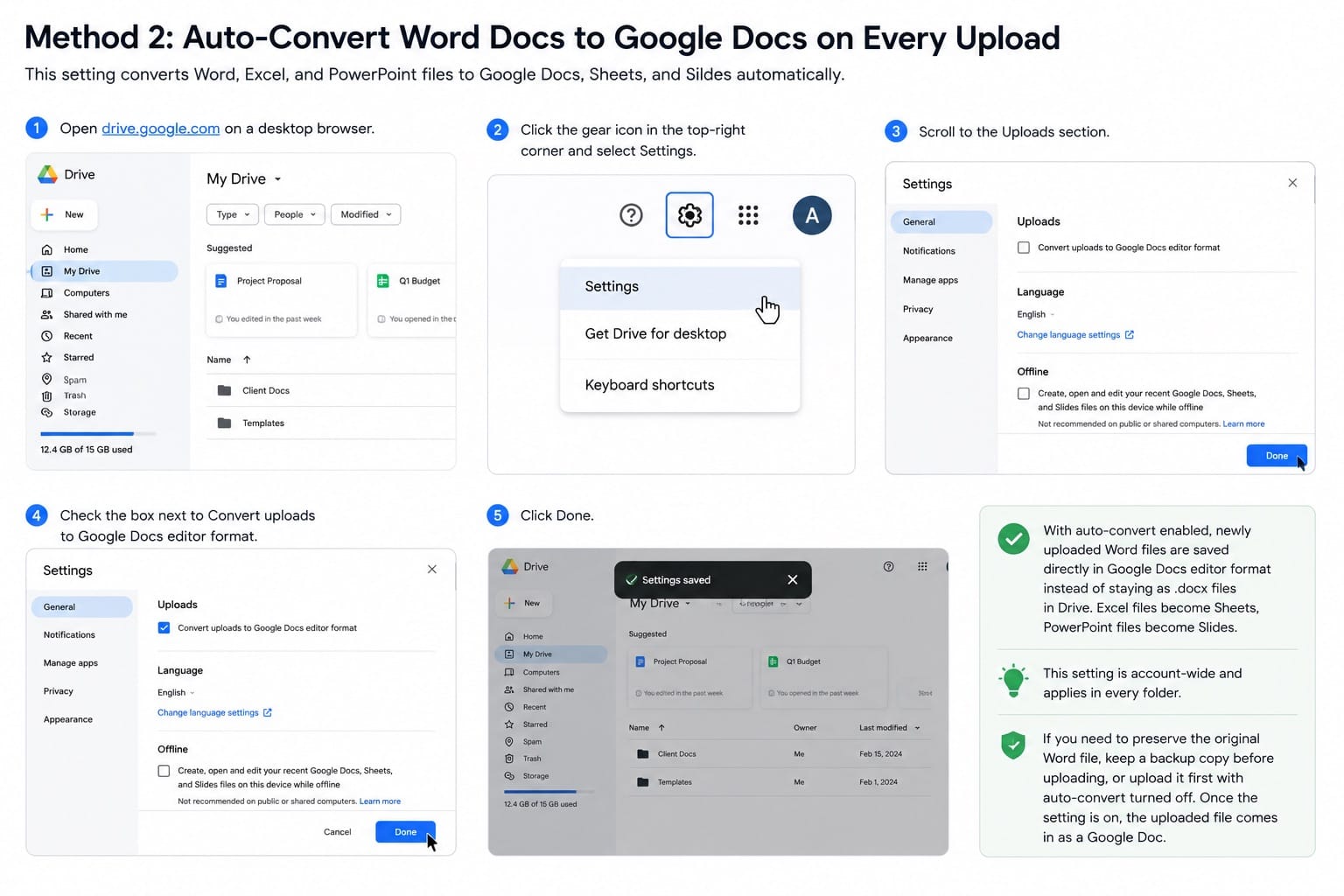
- Open drive.google.com on a desktop browser.
- Click the gear icon in the top-right corner and select Settings.
- Scroll to the Uploads section.
- Check the box next to Convert uploads to Google Docs editor format.
- Click Done.
With auto-convert enabled, newly uploaded Word files are saved directly in Google Docs editor format instead of staying as .docx files in Drive. Excel files become Sheets, PowerPoint files become Slides. This setting is account-wide and applies in every folder.
If you need to preserve the original Word file, keep a backup copy before uploading, or upload it first with auto-convert turned off. Once the setting is on, the uploaded file comes in as a Google Doc.
How to Convert Multiple Word Docs to Google Docs at Once
There's no native bulk convert option for files already sitting in Drive as .docx. Your best path for a large migration:
- Enable the auto-convert setting in Drive (Method 2 above).
- Select all your
.docxfiles on your computer. - Drag them all into a Drive folder in one go.
For a batch of files, the conversion usually happens during the upload process, so the main wait is the upload itself. Very large files or slow connections can still add delay.
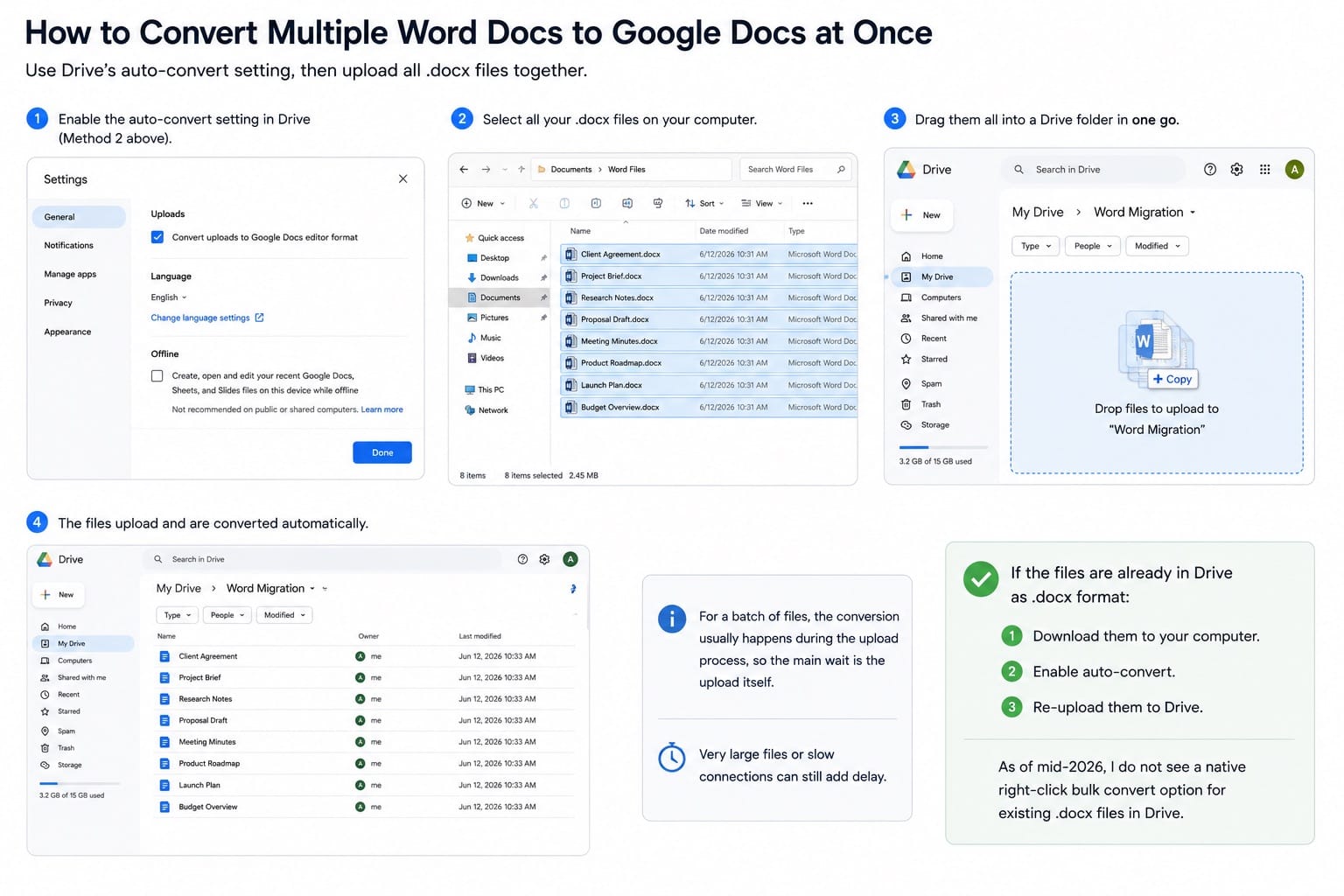
If the files are already in Drive as .docx format, the quickest workaround is to download them, enable auto-convert, then re-upload. As of mid-2026, I do not see a native right-click bulk convert option for existing .docx files in Drive.
How to Convert a Word Doc to Google Doc on Mobile
On mobile, you can upload and open Word files through the Google Drive and Google Docs apps, but reliable conversion to native Google Docs format is best done from a desktop browser. If auto-convert was already enabled from a desktop, uploads may convert automatically. If not, use desktop Drive and File > Save as Google Docs for the cleanest result.
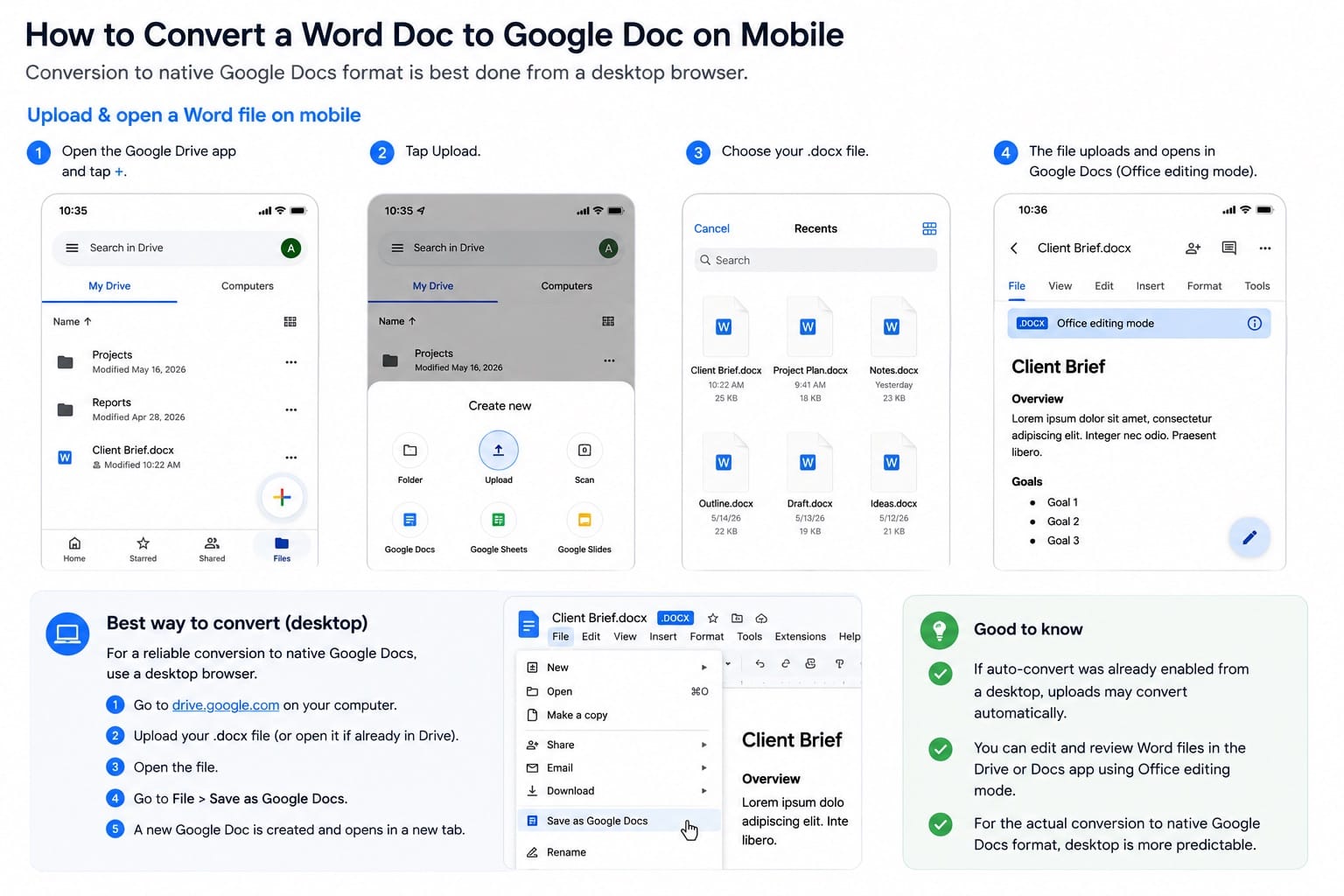
The mobile apps are useful for editing and reviewing files in Office editing mode. For the actual conversion step, desktop is more predictable.
Google Docs Formatting: What Survives a Word Conversion
This is where most tutorials lie by omission. The conversion is good, not perfect.
What transfers cleanly: standard paragraph text, bold and italic, numbered and bulleted lists, basic tables, inline images, hyperlinks, font sizes, and heading styles (H1 through H4). For a clean Word document with standard formatting, you'll likely open the converted file and find it looks exactly right.
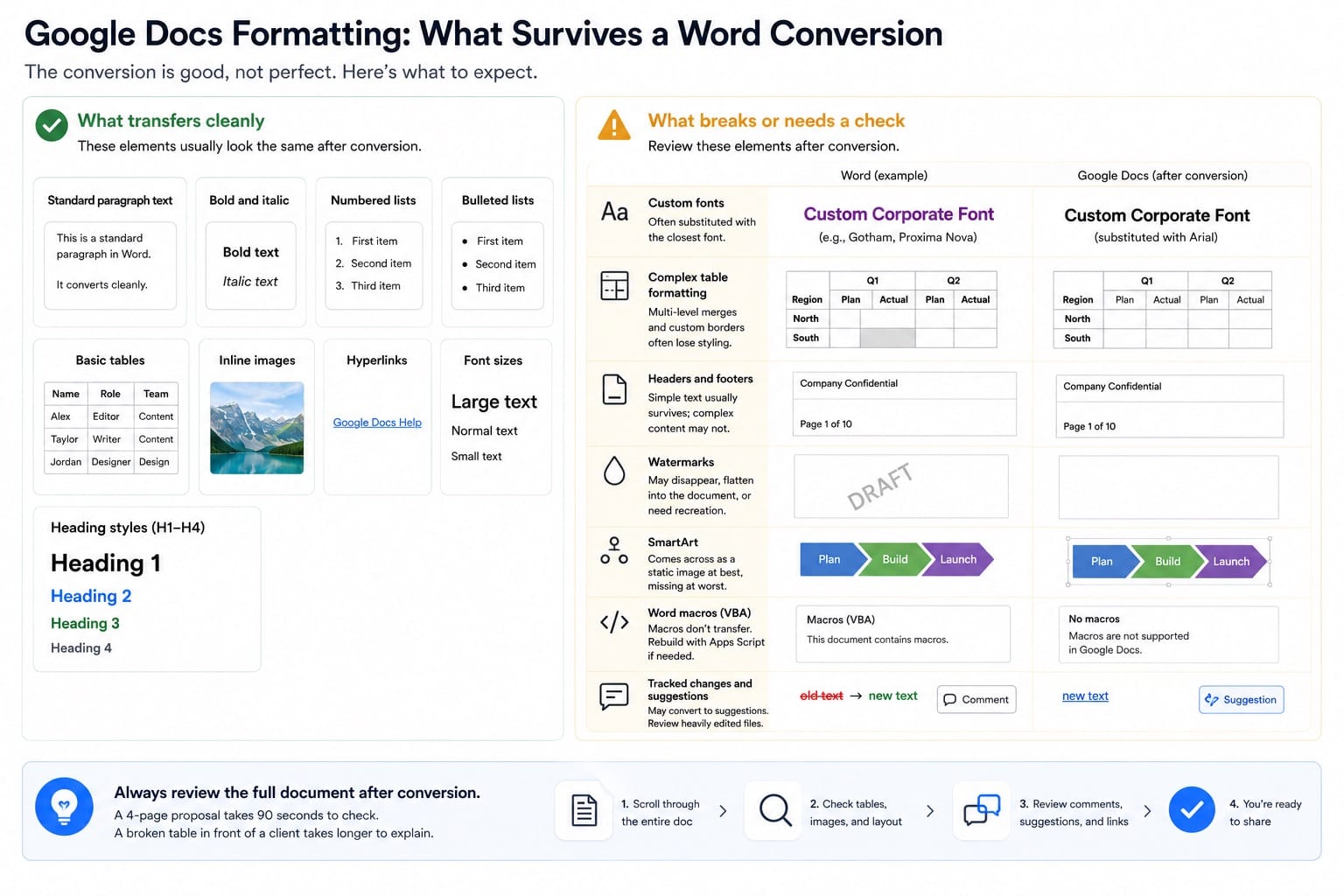
What breaks or needs a check:
- Custom fonts — Common Office fonts such as Calibri usually convert acceptably, but custom corporate fonts are more likely to be substituted with the closest available alternative in Google Fonts.
- Complex table formatting — Multi-level merged cells and custom borders often drop their styling. The data stays; the design doesn't always.
- Headers and footers — These tend to survive for simple text, but break when they contain images, field codes, or section-specific formatting.
- Watermarks — Word watermarks may not convert cleanly. They can disappear, flatten into the document, or need to be recreated manually in Google Docs.
- SmartArt — Word SmartArt diagrams come across as static images at best, missing entirely at worst.
- Word macros — VBA macros don't transfer. If your document had automation built in, you'd need to rebuild that logic in Google Apps Script.
- Tracked changes and suggestions — Word tracked changes often appear as Google Docs suggestions, and Google Docs suggestions can often export back as Word tracked changes. Review heavily edited files after conversion.
After any conversion, scroll through the full document before sharing it. A 4-page proposal takes 90 seconds to check. A broken table in front of a client takes longer to explain.
Keeping the Word File and the Google Doc in Sync
Once you convert, these are two separate files. Editing the Google Doc does not update the .docx, and vice versa. If collaborators are still working in Word, pick one format and stick with it, or manage two copies deliberately.
One workflow that holds up for teams in mixed environments: keep the Google Doc as the working file for real-time collaboration, then export to Word via File > Download > Microsoft Word (.docx) when you need to hand it to someone who only uses Word. See how to download a Google Doc as a Word file for the full steps. Don't try to keep both current at once.
Common Google Docs Word Conversion Questions
Does converting a Word doc to Google Doc delete the original?
Manual conversion via File > Save as Google Docs keeps the original Word file in Drive. Auto-convert on upload saves the file directly as a Google Doc instead of a .docx — keep a local backup if you need the Word version.
Can I convert a Word doc to Google Doc without Google Drive?
No. Google Docs runs through Google Drive. You need a Google account and need to upload the file to Drive to convert it.
Why does my converted Google Doc look different from the Word file?
Font substitution is the most common cause. If the Word doc used fonts not in Google Fonts, they get swapped. Check your paragraph styles after conversion and reapply fonts if needed. Complex tables and headers with images are the next most likely culprits.
Can I convert a password-protected Word document to Google Doc?
Google Drive can store password-protected Office files, but editing or converting them may fail until you remove the password in Microsoft Word. If Google cannot open or convert the file, remove the protection in Word and upload it again.
How big can a Word file be when converting to Google Docs?
Google lists converted text documents as up to 50 MB. Very large Word files may fail or need to be split and simplified before conversion.
Does Google Docs support .doc files (old Word format)?
Google Docs can open and convert many Word files, including modern .docx files and older .doc files. Older .doc files are more likely to have formatting issues, so check the converted document carefully.
What happens to comments in a Word doc when I convert to Google Docs?
Word comments usually transfer into Google Docs, but you should check them after conversion. Comment author names, timestamps, and resolved threads can behave differently depending on the Word version and how the document was saved.
Is opening a Word file in Google Docs the same as converting it?
No. Opening a Word file in Google Docs lets you edit the original .docx file in Office editing mode. Converting it with File > Save as Google Docs creates a separate native Google Docs copy. If you still see .docx next to the title, the file has not been converted yet.
Can I bulk convert Word files already uploaded to Google Drive?
Google Drive's auto-convert setting applies to new uploads only. For .docx files already in Drive, there is no native right-click bulk convert option. The cleanest workaround is to download the files, enable auto-convert in Drive settings from a desktop browser, then re-upload them.